Ajay showed us that the secret isn’t just in the model, but in treating GPUs as fungible compute rather than infrastructure to manage.
I realized then that minimizing cold start latency isn’t just about the model, it’s about the infrastructure patterns and architectural decisions that keep it fast, scalable, and secure.
The anatomy of an AI cold start
As the official Google Cloud GPU best practices explain, an AI cold start is a shift from standard web microservices. You aren’t just booting code, you’re moving gigabytes of weights into a specialized physical accelerator.
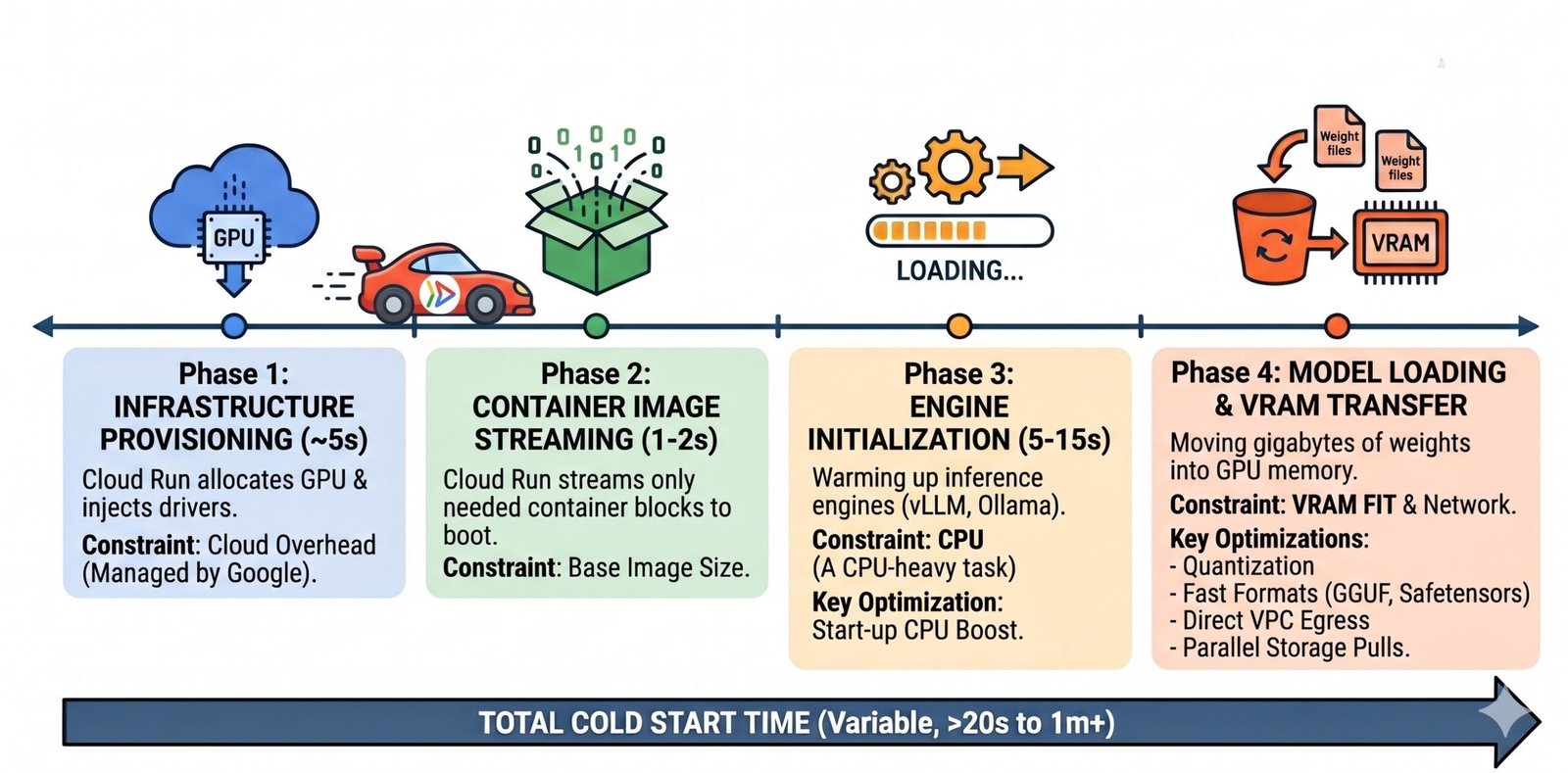
Think of it as a four-phase race. If you don’t optimize each step, you’re going to lose your users.
Phase 1: Infrastructure Provisioning (~5s)
Cloud Run allocates the physical GPU and injects pre-installed NVIDIA drivers. Since Google manages the drivers for you, you don’t have to bloat your Dockerfile.
Phase 2: Block-Level Container Image Streaming (1-2s)
Cloud Run uses “image streaming,” meaning it pulls only the blocks needed to boot. Your 15GB CUDA image can actually start as fast as a tiny Node.js app!
Phase 3: Engine Initialization (5-15s)
This is where your inference engine (vLLM, Ollama) warms up. This is a massive CPU-heavy task, and it’s where most people get throttled without realizing it.
Phase 4: Model Loading & VRAM Transfer
This is the final hurdle – moving those model weights from storage into the GPU memory. Unlike standard web apps where CPU is king, GPU memory is your primary constraint here. If your model’s weights don’t fit entirely within the GPU memory, performance degrades significantly as it swaps to slower system RAM.
Best practices to handling AI cold starts
To build a “sane” production environment, here are a few crucial levers you can pull, informed by the official Google Cloud documentation on AI inference with GPUs.
Optimize Phase 4
Pick the Right Deployment Option
Phase 4 is the “final hurdle” where you move gigabytes of weights from storage into GPU memory. Your choice of storage determines how fast this transfer happens:
-
Cloud Storage (Concurrent Download) – Fastest: Using the Google Cloud CLI (gcloud storage cp) allows you to download model files in parallel. This is the recommended method for massive weights because it maximizes network throughput and drastically reduces transfer time.
-
Cloud Storage (FUSE) – Easiest: This provides “zero-code” changes by mounting a bucket as a local file system. However, because it does not parallelize the initial download, it is significantly slower for large model weights
-
Container Image – Best for <10GB: Baking weights into your image is efficient for smaller models thanks to Cloud Run's Image Streaming. For models over 10GB, however, the import and streaming overhead can become a bottleneck.
-
Internet: Avoid this. It is the slowest and least predictable path for production inference.
Model Format & Size
Optimizing your model’s format and size is a direct “hack” to shorten Phase 4 (Model Loading & VRAM Transfer). Because this phase is constrained by how fast you can move gigabytes of data into VRAM, smaller and more efficient files are critical.
-
4-bit Quantization: This is the ultimate cold start hack. Smaller weights mean fewer gigabytes to pull from storage, which directly accelerates the download and transfer portion of Phase 4,
-
Fast Formats: Pick a model format with fast load times like GGUF to minimize startup time. For the fastest performance, move away from Python “pickle” files and use Safetensors for zero-copy loading.
-
Ensure VRAM Fit: Use quantized models to ensure the weights fit entirely within the GPU memory. If the model exceeds VRAM, Phase 4 will stall as the system swaps to significantly slower RAM.
Optimize Phases 3 & 4: Infrastructure & Network Levers
These infrastructure settings provide the necessary resources to accelerate the most demanding parts of the startup process.
Startup CPU Boost (Accelerates Phase 3)
This feature temporarily doubles your CPU power during startup. A 1 vCPU instance boosts to 2 vCPUs for the duration of startup and the first 10 seconds of serving. It is essential for Phase 3, as engine initialization is a massive CPU-heavy task.
Direct VPC Egress & PGA (Accelerates Phase 4)
Utilizing Direct VPC Egress with Private Google Access (PGA) ensures your model weight traffic stays on Google’s internal high-speed backbone. This optimizes the network path to shorten the time spent moving gigabytes of weights into VRAM.
Concurrency Tuning (Cold Start Avoidance):
In Cloud Run, “concurrency” refers to the maximum number of requests a single instance can handle before the platform scales out to start a new one. For AI workloads, you must tune this setting in tandem with your model engine’s internal parallelism flags (e.g., –max-num-seqs for vLLM or OLLAMA_NUM_PARALLEL for Ollama).
Use the official Google Cloud formula to find your ideal Cloud Run concurrency:
(Number of model instances∗parallel queries per model)+(number of model instances∗ideal batch size)
Example: If your instance loads 3 model instances onto the GPU, and each model instance can handle 4 parallel queries with an ideal batch size of 4, you would set your Cloud Run maximum concurrent requests to 24: (3×4)+(3×4)
How the math works: The goal is to keep the GPU fully saturated while ensuring users aren’t stuck in a long queue. In this example, the total of 24 concurrent requests is split into two functional groups:
-
Active Processing (12 requests): Calculated as (3 instances×4 queries), this represents the total number of requests the GPU can actively process at any given moment.
-
The “Next Batch” Buffer (12 requests): Calculated as (3 instances×4 batch size), these are the requests waiting “on deck” inside the container. As soon as the GPU finishes the first batch, it immediately picks up these waiting requests.
By tuning this value as high as your VRAM allows (usually 10-20 users), one warm instance can serve many requests without triggering a new scale-out event and the cold start that comes with it.
Scaling Controls (Tuning the Threshold)
While the formula above defines your maximum capacity, you can also tune when Cloud Run decides to start the next instance. Cloud Run’s autoscaler typically targets 60% utilization, but for long-running AI cold starts, you can increase this threshold to 80% or 90% via Scaling Controls.
-
Concurrency Target: Increasing this allows you to “pack” more requests into a single warm instance before triggering a scale-out.
-
CPU Target: Increasing the CPU target prevents the platform from starting a new instance just because initialization or high-intensity inference spiked the CPU utilization.